
Personalizing Pelorus
You will open Pelorus many times a day, so it should look the way you want and start where you want. Pelorus keeps those choices in Settings > General and Settings > Search, and this page walks through them in the order you are likely to meet them.
How Pelorus Looks
Settings > General > Appearance holds the visual choices.
| Setting | What it does |
|---|---|
| Theme | System, Light, or Dark, for Pelorus's own chrome. |
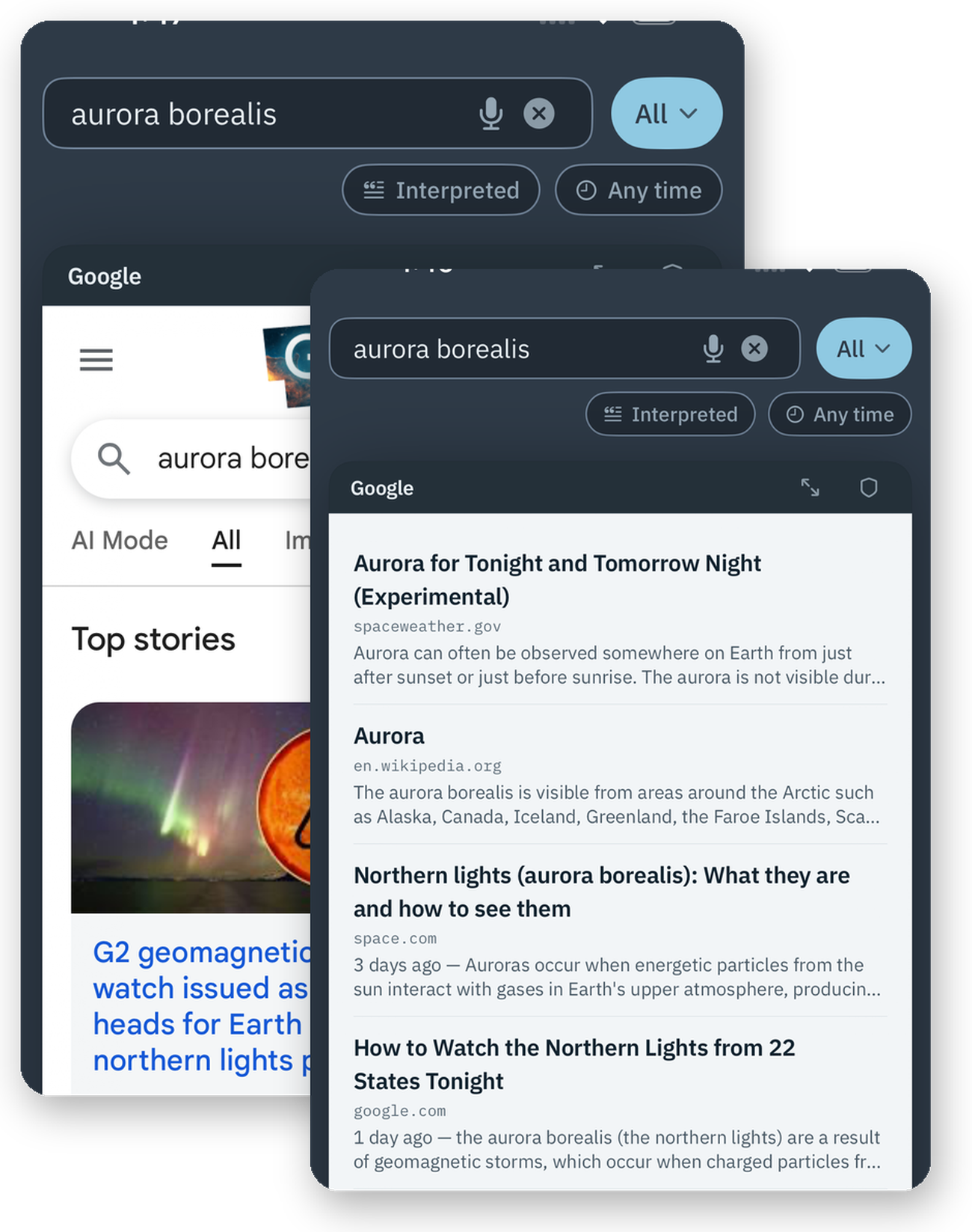
| Search Cards | Match System, Light, or Dark, for Unified Search, AI Synthesis, Reader, and the simplified results lists. Google and Bing only offer light unless you are signed in to them. |
| Always Simplify Formatting | Opens every engine card as a plain list of its results instead of the engine's own page. See Working with Search Results. |
| Card Animations | The short animations between cards and between a page and its simplified list. Off makes every change instant. |
| Show Card Position | A counter in each card's header, such as 2 of 7. VoiceOver announces the position either way. |
| Haptics | The small taps that confirm an action. |
| Contrast | Pushes text and background further apart across the app. It adjusts both of them, not only the text. |
Colors
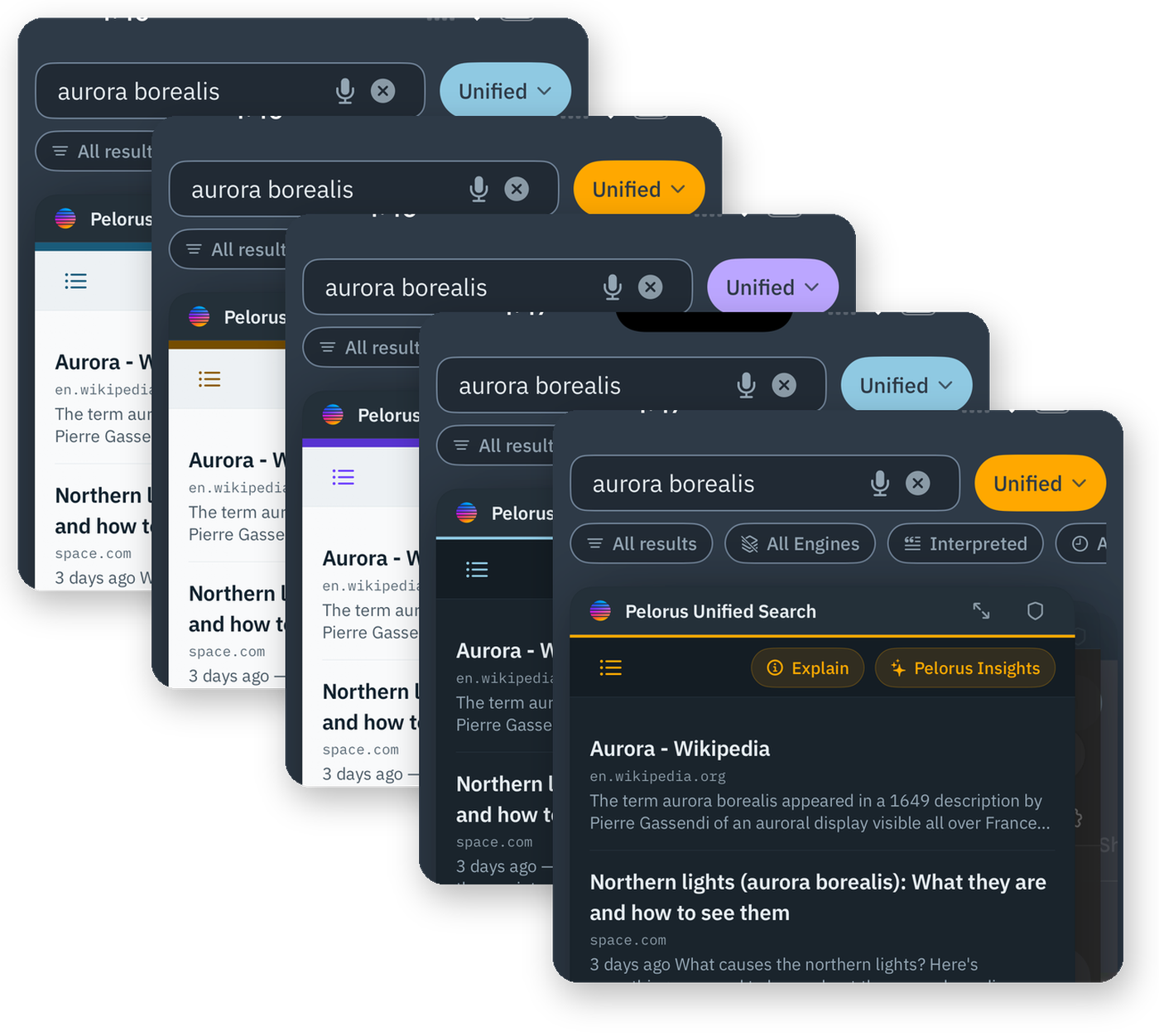
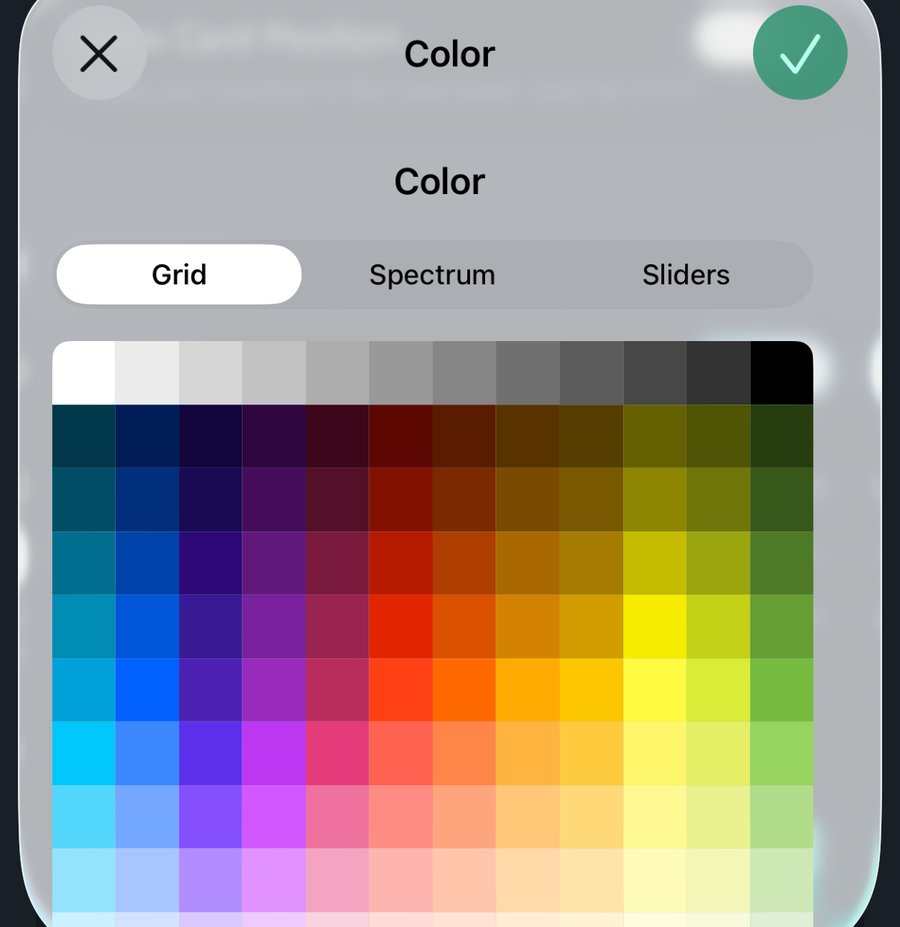
Accent Color styles buttons, switches, and highlights. The default accent is free. The other preset accents, and a custom accent of your own, are part of Pelorus Unlimited, as are the text colors: Titles, Body, Details, and Link Color, set separately for the light and dark themes, on Pelorus's own surfaces. A preview under the pickers shows the result before you leave the screen. Every combination you can pick is checked for contrast, so a color that would make text hard to read is adjusted rather than allowed.
The App Icon
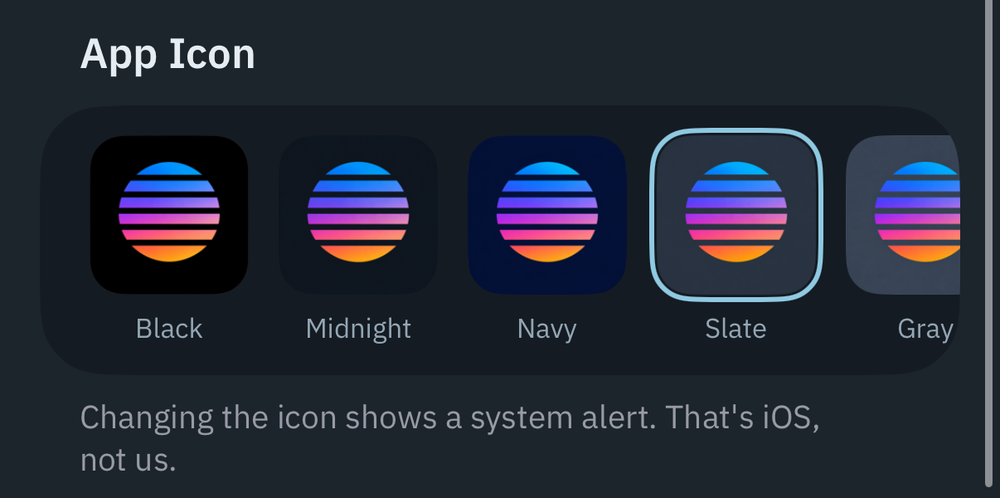
App Icon, under Settings > General > Appearance, offers a set of icons with the accent-matched Pelorus mark. Slate is free. The others are part of Pelorus Unlimited.
How a Search Starts
Settings > Search sets the starting point for every search.
- Default Engine is the engine that runs when you search with one engine, and the one named at the top of the search button's menu.
- Default Search Mode is the mode every search starts in: Default Engine, Unified Search, or All Engines. A fresh install starts in Unified Search. A mode picked from the search button lasts until you pick another, load a preset, or relaunch, and then this setting is back.
- Search Engines is where you turn each engine on or off, set its shortcut, give it a ranking weight, decide whether it offers suggestions, and add a key or a custom engine.
Your Home Site
Home Site, under Settings > General, is a page Pelorus can open for you: from Open Home Site in Siri and the Shortcuts app, or from the Home Screen.
Where Links Open
Two settings under Settings > General control what happens when you tap a link.
- Open Links In lists the browsers installed on your device and allows you to set the default it will use for the Open in Browser button in the toolbar. With this setting, your device can maintain a default browser and you can either use that, or you can set Pelorus to use any specific browser you specify regardless of your system-wide default.
- Link Destination decides where a link that opens a new window goes. In Card keeps it in the card you are reading. Modal opens it in a window on top of that card, which you close to go back. Some sites open links with their own scripts, which Pelorus cannot change.
Siri, Shortcuts, and the Home Screen
Pelorus offers five actions to Siri, the Shortcuts app, and Spotlight with no setup: New Unified Search, New Search, Erase Current Session, Erase & Open, and Open Home Site. Say "Search Pelorus for…", pass a query from a Shortcut, or put Erase Current Session on the Action button, where it erases without opening the app.
Press and hold the app icon for up to four quick actions of your choosing: New Search, Voice Search, Search Default Engine, Erase & Open, Erase Session, and Open Home Site. The set is under Settings > General.
Usage Tips
Pelorus shows a short tip the first time you meet certain features, and each one shows once. Settings > General has a control that resets them so they show again.
iCloud Sync
Sync Settings with iCloud, under Settings > General, carries your settings to your other devices through your own iCloud account: engines, presets, domain rules, filters, and appearance choices. It is off until you turn it on. It does not carry your API keys, which sync separately through iCloud Keychain when you allow it beside each key field, and it never carries anything about what you searched or visited, because Pelorus never records that in the first place.
Labs
Settings > Labs holds features that are still being tried out. Turn on Enable Test Features to see them. They can change or disappear between versions.
We will soon be releasing several major new citations and library features, plus several dozen additional search engines. Once we have completed initial testing, they are going to live in Labs for a while before they are officially released.
Reader
Reader's own appearance, from fonts to dimming to voices, has a panel of its own. Reading and Listening covers it.