
Reading and Listening
Most articles arrive wrapped in things that are not the article: menus, banners, boxes asking you to subscribe, and type that was chosen for the site rather than for you. Reader takes the article out of all that and sets it the way you want to read it. Read Aloud reads it to you.
Getting There
Open any result and tap the Pelorus button, then Reader. It works on articles, posts, and most pages with a body of text. Reader does little on a page that is mostly navigation or interface, because there is no article in there to pull out. View Original takes you back to the page as it was published.
How It Looks
Reader has twenty-two fonts in four families: serif, sans serif, monospace, and high legibility. Newsreader and the high-legibility faces are free. The rest are part of Pelorus Unlimited. A live preview sits under the selector, so you see the change before you leave the screen.
You also control:
- Line spacing: tight, normal, or relaxed.
- Text alignment: left or justified.
- Images: compact, normal, or large, or off.
- Whether titles, bylines, and footers appear.
Dimming
Dimming darkens Reader on its own, without changing the screen brightness. If your phone is already at its lowest setting and the page is still too bright, Reader can take it further. Dimming is part of Pelorus Unlimited.
Focus
Focus fades everything but the paragraph or line you are on. That is the one being read aloud, or the one at the middle of the screen. It can make a long article easier to stay with. It is off by default. Focus is part of Pelorus Unlimited.
Read Aloud
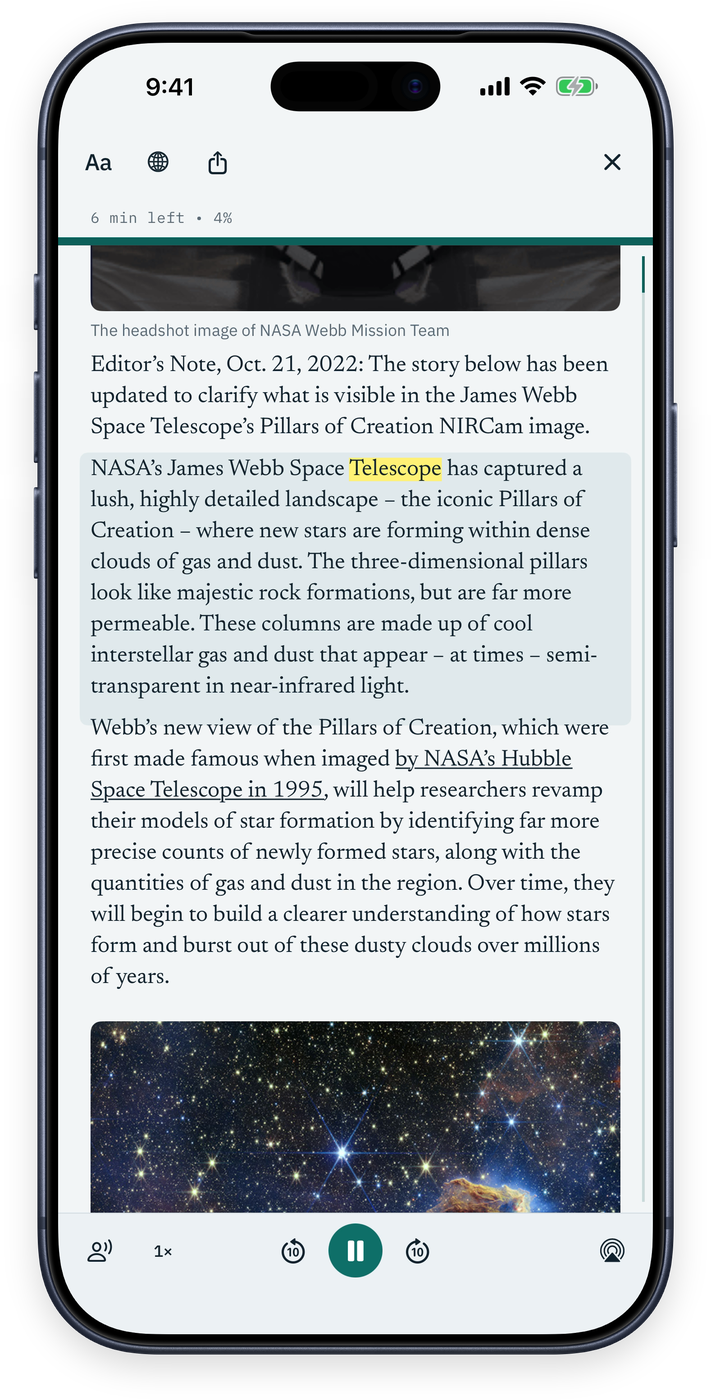
Reader reads articles aloud. Choose a voice, play a sample to hear it, and set the speed. The text highlights as it is read, so you can follow along or put the phone down. Tap a paragraph to start there. Touch and hold a paragraph to hear just its section. Skip ten seconds either way.
Playback continues when you leave Reader and when you lock the phone. Controls appear on the Lock Screen and in Control Center, and you can send the audio to a speaker or headphones with AirPlay. Each of those is a switch under Settings > Reader, so you can turn off the ones you do not want.
Voices. Read Aloud uses the voices already on your device, so any voice you have downloaded in iOS is available here. Pelorus also offers the Pelorus Voices, four natural voices you download once from Settings > Reader and that run entirely on your device, like the iOS voices. The download is optional, and Pelorus works fully without it.
Synthetic speech mispronounces things, particularly names and unusual spellings. Treat it as a reading aid rather than a narrator.
Links and Images
Tap a link to open it. Touch and hold it to preview it in place, add it to Safari's Reading List, or search Pelorus for it. Footnotes and citations preview in place too, so you can check a source without losing your place.
Tap an image for the full picture, its caption, and its source. From there you can save it, share it, copy the text out of it, or have your device describe it.
Progress
Reader shows the time remaining and how far through the article you are, kept small enough to ignore.
Taking It with You
Export / Send To in the Pelorus button passes the article's text along with its original address, as Markdown or PDF, so what lands in your notes is the article rather than the page furniture. Bear, DEVONthink, and Obsidian appear as destinations when they are installed, and the share sheet reaches everything else.
Where the Settings Live
Reader has its own panel in Settings, between Search and Privacy & Security. Anything you set there becomes the default for every article you open.