
Basics of Searching
A search engine gives you one list, made by one company, in the order that company chose. You take it or you open another app and search again. Pelorus is built so that you do not have to. One search runs on every engine you turned on, each engine answers on its own card, and the Unified Search card shows you where they agreed. This page covers the parts you touch on every search: the field, the search button, the cards, and the toolbar.
The Search Field
The field at the top takes a question or an address. Type a question and Pelorus searches. Type an address such as nasa.gov and Pelorus opens that page in a card instead.
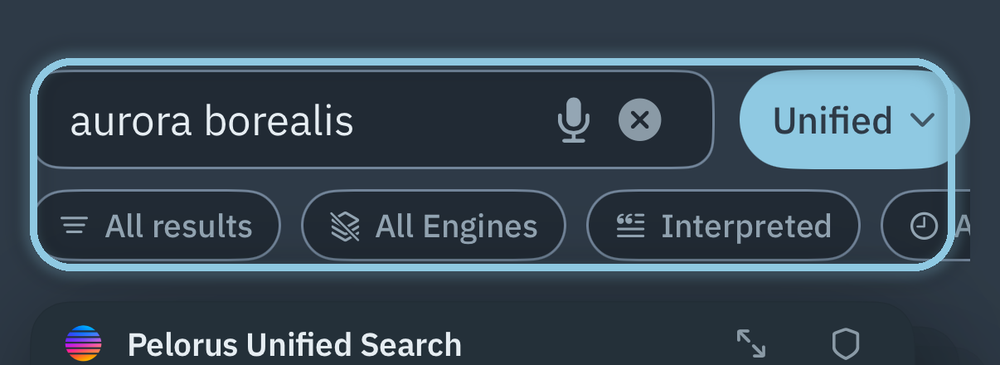
The microphone in the field starts voice search. Your voice is turned into text on the device, and nothing is recorded or sent anywhere. The X clears the field.
As you type, Pelorus can complete addresses you have typed before and can show suggestions from your engine. Both are settings, and suggestions are off until you turn them on, because they send what you type as you type it. Both live under Settings > Search.
The Search Button and Its Modes
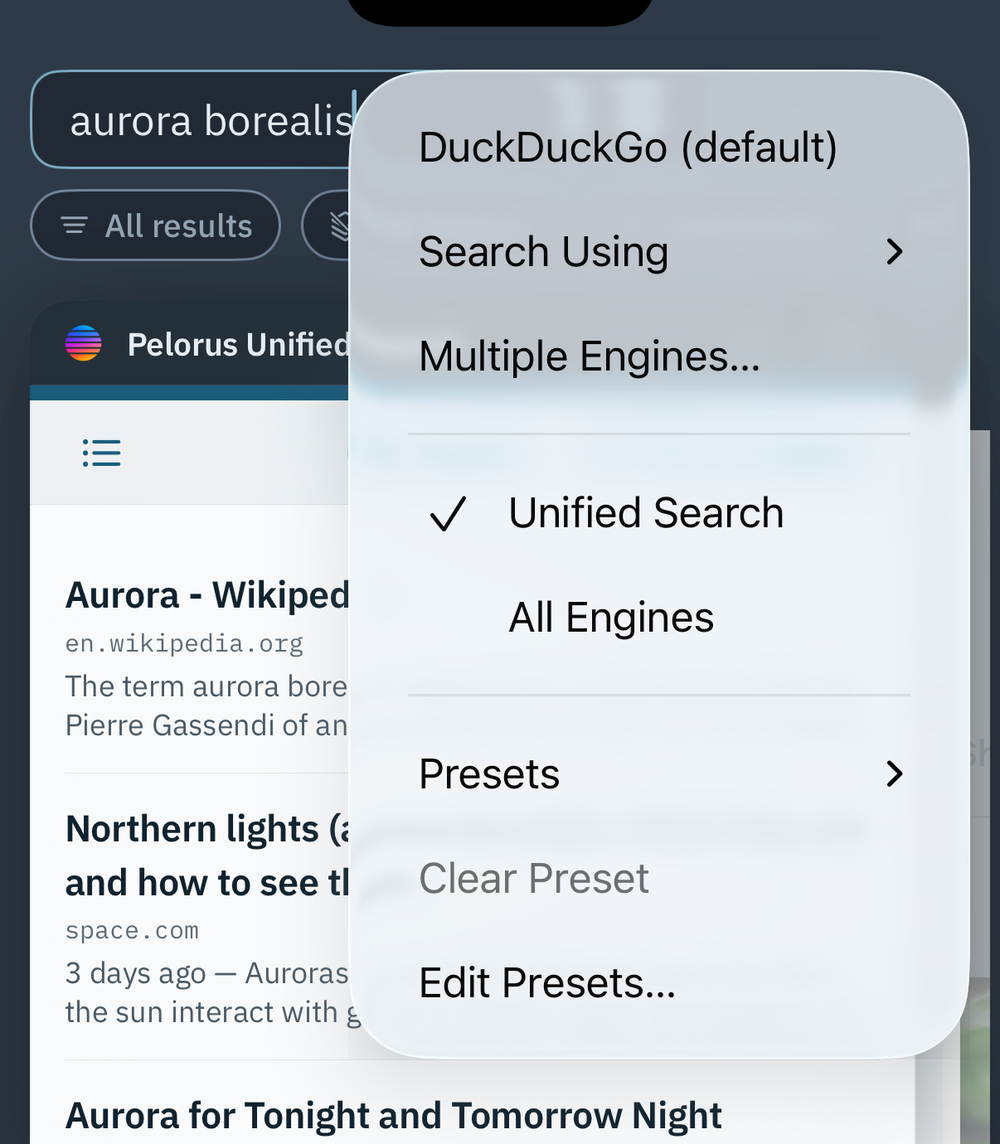
The button to the right of the field runs the search. Its label tells you how the next search will run. Hold it, or tap the arrow beside it, to open the menu and choose another way.
| Mode | What it does |
|---|---|
| Default Engine | One engine, one page. The engine named at the top of the menu is your default. |
| Unified Search | Every engine you turned on, merged into one list with no repeats, plus each engine's own card behind it. |
| All Engines | One card for each engine, side by side, with no merged list. |
| Multiple Engines… | Pick any set of engines for this one search, and choose whether to build a Unified card from them. Nothing you pick here is remembered. |
| Search Using | Run a one-off search on any single engine, on or off, without changing anything. The list shows your engines, and Others… at its foot opens every engine Pelorus has. |
| Presets | Load a saved set of engines and settings. See Working with Presets. |
A mode you pick from this menu lasts until you pick another, load a preset, or relaunch the app. The mode every search starts in is Default Search Mode under Settings > Search, and a fresh install starts in Unified Search.
A search without Pelorus Unlimited runs up to two engines at a time. A one-off search from Search Using, or a shortcut such as !g, still reaches any single engine.
Moving Between Cards
Every card is a live page. The card header names the engine. Turn on Show Card Position in Settings > General > Appearance and the header also says where you are in the stack, such as 2 of 7. VoiceOver announces the position either way.
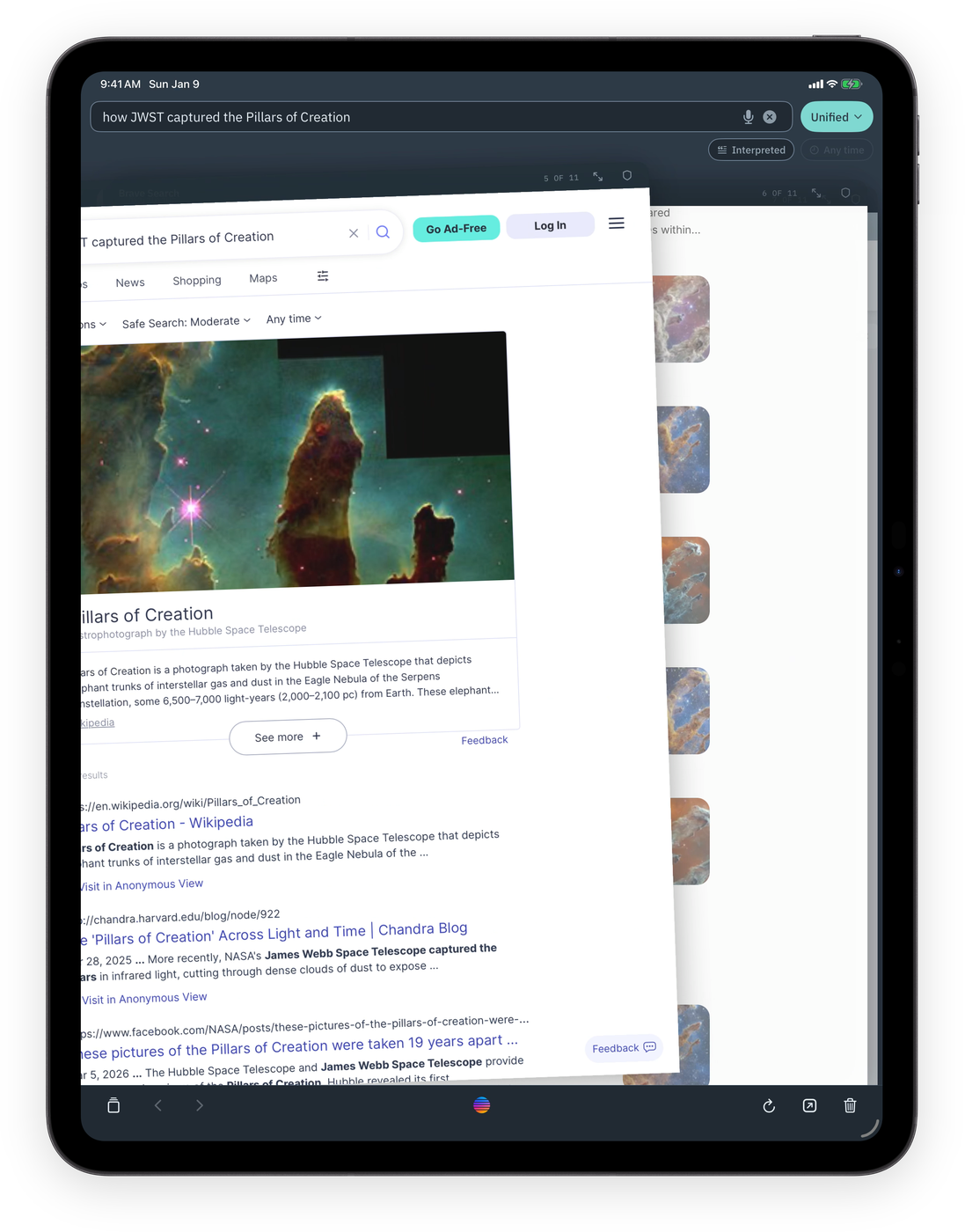
- Swipe left or right to move between cards. On iPhone the card follows your finger. On iPad a short swipe is enough to move you to the next card.
- Tap the edge of the next card, which peeks in from the side, to jump to it.
- Swipe a card's header up to hide that engine for this search. The Cards button at the left of the toolbar lists every card and brings hidden ones back.
- Tap the expand button in a card's header to take the card full screen. Tap Done to leave it.
- Tap the shield in a card's header to see what that site stored and what Pelorus blocked on it.
Tapping a result opens it in that card. Back returns you to the results page. If you have browsed away from an engine's results and want them back, the Cards button lists the stack and the engine's own results are one tap away.
The Toolbar
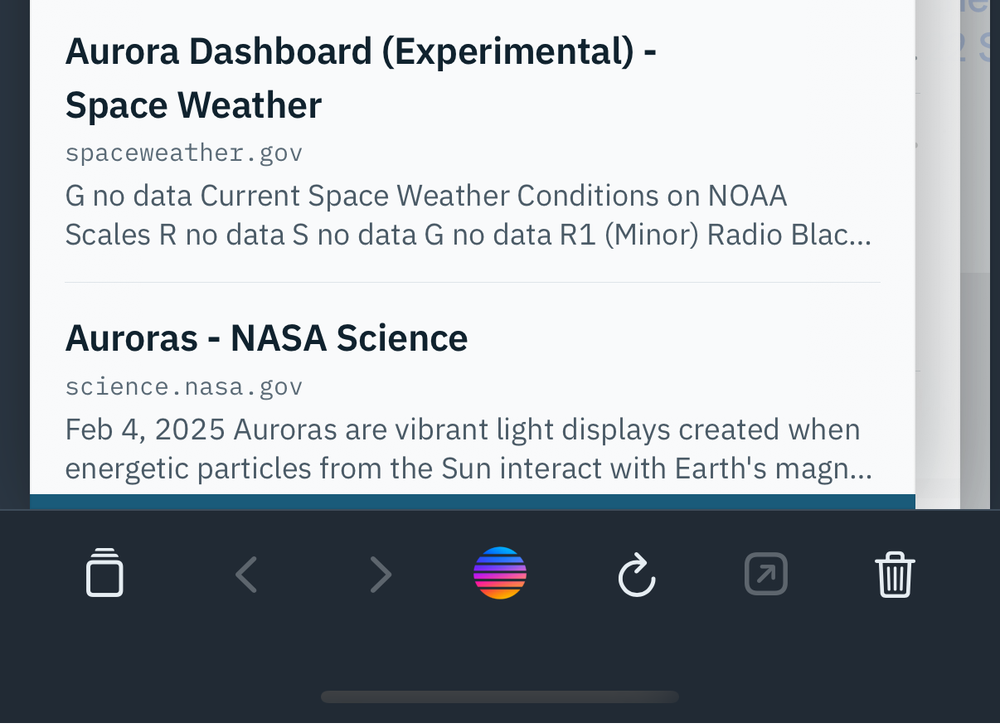
The toolbar runs along the bottom of the screen.
| Control | What it does |
|---|---|
| Cards | Lists every card in the stack, including hidden ones, and jumps to the one you choose. |
| Back and Forward | Move within the card you are on, the way they do in a browser. |
| The Pelorus button | Opens the menu for the page you are reading: Reader, Find in Page, Summarize this Page, Compare with…, Export / Send To, Search for Similar Pages, Add to Reading List, Settings, and Help & Support. |
| Reload | Reloads the card you are on. |
| Open | Hands the page to whichever browser you chose under Settings > General. The page leaves Pelorus, and that browser keeps its own history. |
| Erase | Closes every card, forgets the search, and wipes everything Pelorus kept behind them. See Getting Started. |
Opening a Page
Tap a result and it opens in its card. Press and hold a link to open, copy, or share it. Where a link opens is a setting, Link Destination under Settings > General. In Card opens it in the card you are already reading. Modal opens it in a window that sits on top of that card, which you close to go back to where you were.
Reader turns any page into plain article text. You will find it under the Pelorus button. Reading and Listening covers it.
Keyboard
With a keyboard on iPad, every main action has a shortcut.
| Shortcut | What it does |
|---|---|
| ⌘L | Focuses the search field |
| ⌘F | Finds in the page |
| ⌘R | Reloads the card you are on |
| ⌘[ and ⌘] | Go back and forward |
| ⌘⇧[ and ⌘⇧] | Move to the previous and next card |
| ⌘1 through ⌘9 | Jump to that card |
| ⌘W | Hides the current card |
| ⌘⇧M | Opens the mode selector |
| ⌘⇧O | Opens the page in your browser |
| ⌘, | Opens Settings |
| ⌘⇧⌫ | Erases everything |