
Getting Started
Start here. These three things cover what you need on your first day with Pelorus. The rest of the help pages go deeper whenever you want them.
How Pelorus Looks and Works
Pelorus is a browser with several search engines in front of it. Everything starts in the field at the top. Type a question and Pelorus searches for it. Enter a web address instead and Pelorus just opens that page.
Each search engine's results land on their own search card. All of your cards sit in a stack, and you swipe left or right to move between them. Swipe up from the card's title bar to hide that card. Every search card is a live web page, so you can tap results, follow links, and go back and forward, just as you would in any browser.
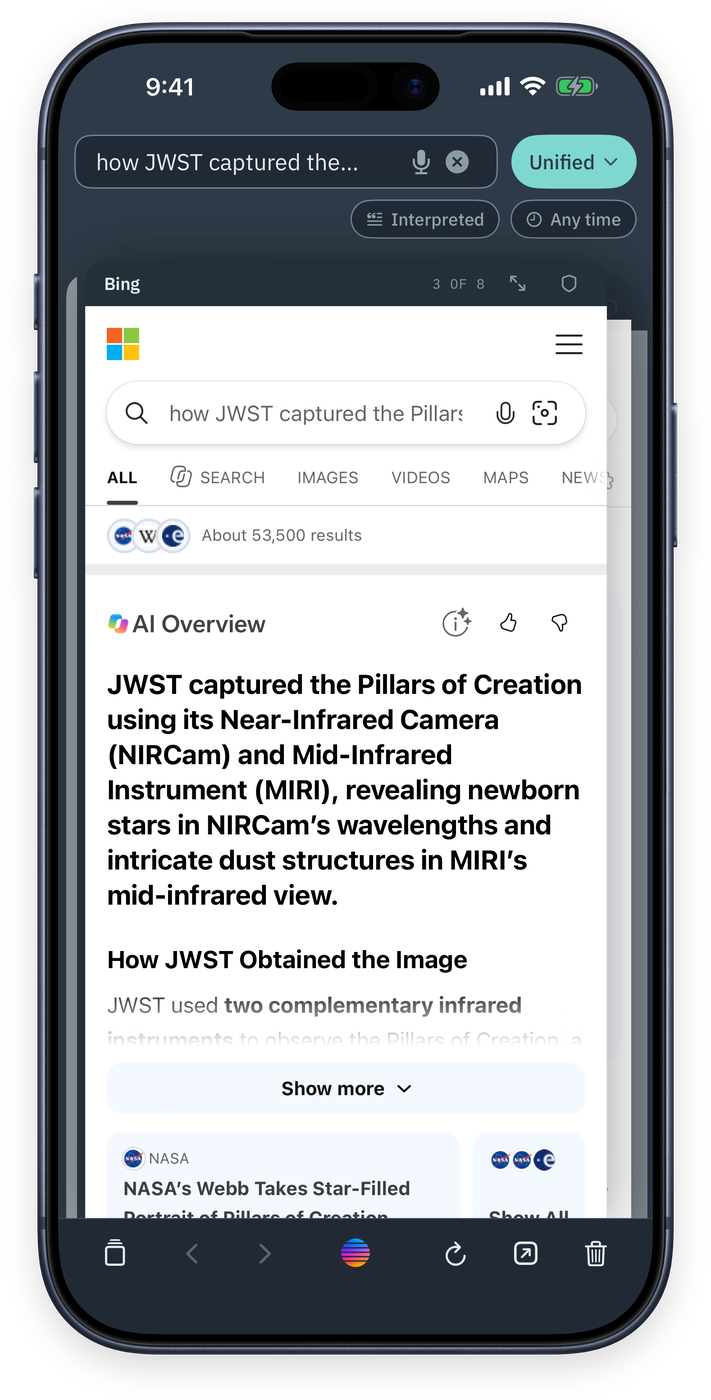
The first card in the stack is Pelorus Unified Search. It is the list Pelorus builds from every engine's answers. The same result never appears twice, and results that more than one engine found come first.
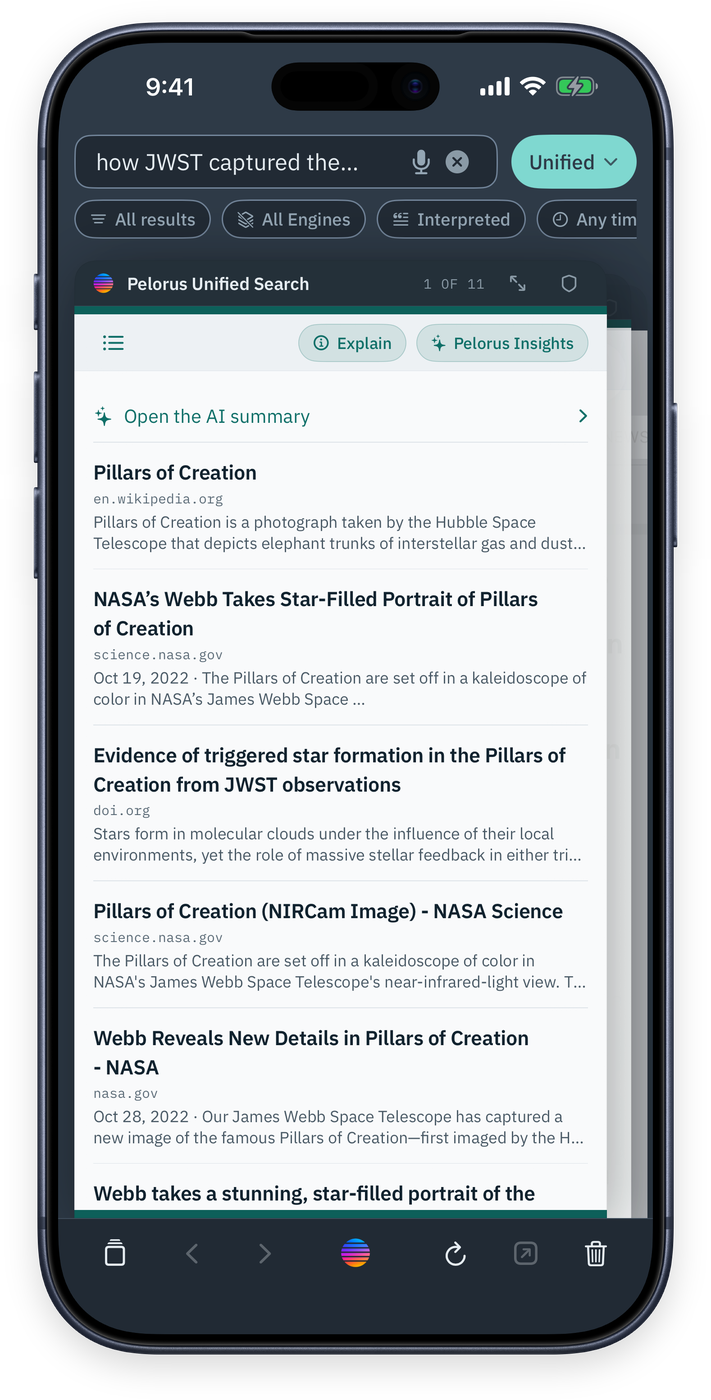
Your Pelorus tools run along the bottom. From left to right:
- The Cards button lists every card in the stack
- Back and Forward move within the card you are on just as in a browser
- The Pelorus menu in the middle opens a wide range of features for the search and page you are on
- Reload reloads the page you have open
- The Open button opens the page in your default browser
- Trash can on the right erases your current session
Your First Search Gives You More than One Answer
Every search engine shows you its own answer. You never see the ones it left out. Pelorus runs your search on several at once and shows you all of them, so you can see where they agree and where they differ.
Try it. Type a question and tap the search button. The Unified Search card opens first. Swipe left and you reach each engine's own results page. Swipe back to the Unified card and you will see those answers merged into one list, with the pages more than one engine found at the top.
A fresh install searches with two engines. You can choose which two under Settings > Search > Search Engines. Pelorus Unlimited removes that limit.
Erase
The trash can in the toolbar is Erase. It closes every card, forgets the search, and wipes everything Pelorus kept behind them: cookies, caches, service workers, and anything a page saved on your device.

Your settings, engines, presets, and API keys stay. Erase deals with what you looked at. How you set the app up is untouched.
Pelorus keeps no history and has no tab list. Each search opens a stack of cards, and the cards last until you erase or search again. If you want a page later, share it, send it to your notes, or export it before you erase. Managing Site Logins explains the one exception: a site you choose to stay signed in to.
If you would rather not think about it, turn on Erase When Switching or Closing Apps under Settings > Privacy & Security, and pick a delay. With a delay set, you can step out to read a message and come right back with your cards still there. Stay away longer and they are gone.